
Console screen view with commands
The Developer console is an instrument that has been around for some time,[1] but was only made available to players with the release of Z-buffering on 15 September 2010. It may, according to Jagex, "prove useful in tracking down the cause of more technical issues with the client on your computer." You can view a list of commands by typing either help or commands in the window. It also displays the current build number in the lower right corner.
The latest build number is build 897.1.
To get to this console hold down Alt then press the ` (quote/grave accent) or ² (superscript 2). It is found to the left of the '1' key on most QWERTY keyboards. The tilde ~ is on the same key, on some keyboards. Typing in the alt-key code for "²" (Alt+0178) will also open the console. If you find yourself unable to close it, try holding [shift] while pressing any of these buttons, or using the [Alt gr] key. The console is useable on the login screen. At the moment, the developer console can only be used with English keyboard layout (the extended and international versions will not work), however you can open the console on non-English keyboards by using the on-screen keyboard program.
Commands
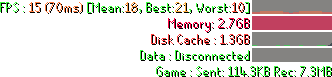
The displayfps debug text
| Command | Action |
|---|---|
| commands | Lists commands. |
| help | |
| cls | Clears the console screen. |
| displayfps | Toggles frames per second (FPS) and other information screen. |
| displayfpsfull | Toggles frames per second (FPS) and other information screen with expandable graphs. Only for NXT. |
| displayfpssmall | Toggles frames per second (FPS) display only. Only for NXT. |
| renderer | Prints graphics renderer information |
| heap | Prints Java memory information. Not in NXT client. |
| getcamerapos | Prints location and direction of the camera for use in bug reports. |
| deletejs5caches | Deletes the game cache. Only for NXT. Does not work in lobby. |
When one logs out, all entered commands will be deleted and cannot be retrieved.
Player and Forum Moderators have no additional access to console commands; they only have access to the standard player commands, as the console is primarily only for Jagex Moderator usage.
Details
- Throughout this section, the units used are of base 1024, rather than base 1000. For example, a mebibyte is 1024 kibibytes, which are 1024 bytes each (1 MiB = 1,048,576 B); as opposed to a megabyte being 1000 kilobytes, which are 1000 bytes each (1 MB = 1,000,000 B)
displayfps
The displayfps command is the only command that does more than print to the console - it toggles the debug text in the interface. The debug text appears in the top-right of the login screen and the lobby, in the Debug text box in customisable interfaces (which can be moved in edit mode), and to the left of the minimap in legacy interfaces.
The text displayed by displayfps is modified in the NXT game client compared to the Java client.
Java
The debug text has several pieces of information:
- Fps
The current frame rate the game is running at - this is capped at 50 frames per second. In brackets, the render time of each frame is given in milliseconds (this is 1/frame rate, so 50 FPS is a result of a 20 millisecond render time). The higher your frame rate, the smoother your gameplay will feel and the less frame latency you will experience. - Mem
The amount of memory current used by the game and the amount reserved by the game. This is the Java heap, an area of dynamic memory allocation managed by the Java Virtual Machine (JVM); it is measured in kibibytes. This number turns red when more than two-third of the allocated memory is used. When the amount used gets too close to the amount reserved, the garbage collector is run, which will reclaim a large amount of memory at once. - Game
This shows various network statistics relating to the game server you are connected to:- In
The rate of transfer of data from the server to your client, represented in bytes per second. This increases with the more things that are happening around you, like other players and NPCs moving and interacting. - Out
The rate of transfer of data from your client to the server, represented in bytes per second. This is closely tied with the amount of inputs you are giving to the game (resulting in more server queries): doing nothing has a minimal 'out rate', while rapidly moving your mouse over many objects (for example, a line of item icons in your bank) generates a large 'out rate'. - Ping
A ping is a measure of network connectivity and latency, represented as the time for the client to send a small amount of data to the server, the server to generate a response, and the response travelling back to you (the round-trip time). The higher your ping, the more latency you will experience - commonly experienced as clicking to move, but not moving for a few game ticks (though there may be other causes for this). The lower your ping, the more responsive the game will feel - especially important for places where quick responses are necessary (such as bosses).
A high ping has many causes, including but not limited to: The amount of bandwidth your client and other programs on your computer (or other computers on your network) are using, the geographical and network distance from you to your ISP, the geographical and network distance from your ISP to the server you are connected to, whether there are any issues along the network, how loaded the server is (generally only applies to almost-full worlds or very busy locations), and to some extent, the load on your computer (generally only applies to very low-CPU-power computers).
- In
- Lobby
This provides the same statistics as Game, but for the lobby server you are connected to. Only one of these will be active at a time (but both are always displayed). - Offheap
This is the current size of off-heap storage, measured in kibibytes. This turns red when it reaches 60 mebibytes. The off-heap is an area of memory which is not under the management of the JVM, so garbage collection does not occur. This is used to store data which does not change (models, text, etc), and may include any data stored on graphics memory (such as textures). This number generally does not reduce once it has increased - the only way to do so is by restarting the client. - Cache
This gives the percentage of the Jagex cache that is present on your computer. The percentage is given in two ways - presumably percentage of total size, and percentage of number of files. If the cache is not at 100%, the game will attempt to download the remaining files. Playing with a very low cache percentage will result in many assets missing - such as opening your bank and finding it empty, as all of the item icons have not been downloaded yet.
NXT
Many of the points are only slightly modified versions of the above points. Several of the options have a live graph of the values, which can be hovered-over to expand it to a larger graph and some additional information. Graphs and values generally range in colour from red for the "worst" values, through orange, yellow, green, and blue, to purple for the "best" values (e.g. the higher your FPS, the closer to purple it becomes).
Below, "your current session" ends when changing worlds or exiting to lobby, and values tracked per session are reset.
- FPS
The current frames per second, as described above. Additionally shows the mean, minimum, and maximum FPS of the last 30 seconds. The graph shows FPS over the last 15 seconds, with lowest and highest points of the graph shown on hover-over (Peak FPS and Lowest FPS). If VSync is not off in Graphics settings, the maximum FPS is capped at what your monitor can support (adaptive) or 60 (on). - Memory
The amount of memory in use by the client, much like "mem" above. Memory in NXT is generally more actively cleared and doesn't rely on garbage collection like java. The graph shows memory usage over the last 15 seconds, and the peak memory usage of your session is shown shown on hover-over. - Disk Cache
The amount of storage space used by the game on your drive. This is equivalent to "cache" above, but the percentage is replaced by the actual size. The full cache is around 8.5 to 9.1GB, depending on the amount of extra files left over from previous updates and/or NXT beta participation. The graph shows disk access over the last 15 seconds, with the amount of activity each tick and the loading queue shown on hover-over. - Data
Status of the data connection. If your cache is not complete, the game will attempt to download the remaining files, showing the total data send, received, and the rate here. The graph shows the transfer rate over the last 15 seconds, with no additional information on hover-over. If your cache is complete, it simply states Disconnected. - Game
Similar to "game" above, this shows the total bandwidth used by the game, with labels Sent and Rec (received). This is the total amount of data used by the game in your current session. Additionally, Ping is shown, which follows the above. - Lobby
When in the lobby, the "Game" line is replaced by "Lobby", which functions the same way. Unlike the Java client, the NXT client only shows one of these lines at a time.
renderer
Java
The renderer command prints a number of details about your current render mode and device to the console.
- Toolkit ID is the identification number of the rendering toolkit in use - 0 for safe mode, 1 for OpenGL and 3 for DirectX.
- Vendor is the identification number of the specific software used to run on your machine.
- Name is the name of the render mode used - OpenGL, Direct3D (DirectX), Pure Java (safe mode).
- Version is the version of the renderer used.
- Device is the device the game is being rendered by, for example "NVIDIA GeForce GTX 970" in DirectX and "geforce gtx 780/pcie/sse2" in OpenGL. Displays "CPU" for safe mode.
- Driver Version is the version of the driver your render device is using.
- Caps is a list of numbers which defines the capabilities of your render device and driver, used internally to determine if certain options can be used (e.g. anti-aliasing, bloom, etc).
NXT
- Backend is the name of the rendering API, which currently is only OpenGL
- Version is the version of the renderer used, which is usually related to your graphics driver version
- Vendor is the name of the manufacturer of your graphics display device
- Renderer is the name of the rendering device ("device" above)
- Capabilities is a long, multi-column list of capabilities of your graphics device and driver supports, much like "caps" above (but a list of variable names instead of just some numbers)
heap
The heap command prints the amount of memory reserved by the game to the console. This is given in the standard Java way with a single-character suffix if required, where K is kibibytes, M is mebibytes and G is gibibytes. The heap command is not available in the NXT client (as there is no heap size to query).
Developer Coordinates

The getcamerapos command on the Developer console provides access to the developer coordinates, which allow one to precisely identify any game map square, even in map areas (such as dungeons) where the sextant does not work, as for example to describe the Keldagrim penguin spawn. A map square is described in developer coordinates as a 5-tuple of non-negative numbers (z, x1, y1, x2, y2), with the origin in the unexplored ocean to the southwest of RuneScape.
The x1 and y1 coordinates identify a 64-square by 64-square map block, while the x2 and y2 coordinates provide the offset within the map block. The z coordinate gives the map level—0 for ground, 1 for the first floor of buildings, etc. While one might expect dungeons to be at negative levels, they are in fact at ground level, but in distant parts of the map—so descending into a dungeon is like teleporting to a different part of the map. Historically, entering a dungeon was in effect teleporting 200° due north. More recent dungeons have sometimes been placed wherever they may fit, and so the "southern" ground level end of the map and the "northern" dungeon level do not overlap cleanly.
Because the developer console provides the coordinates of the camera, rather than the character on whom the camera view is centred, determining one's own position in developer coordinates takes two steps. First, clicking the compass to align the map strictly north-south, use the developer console to find the camera position and note the "longitude" values x1 and x2. Then rotate the camera 90° so you are viewing due east or west, and again use the developer console to find the camera position and note the "latitude" values y1 and y2. Taken together, these provide the developer coordinates for the square on which the player character is standing.
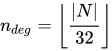
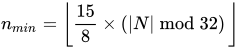
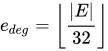
The conversion from developer coordinates (z, x1, y1, x2, y2) to conventional coordinates (ndeg° nmin' [n|s] edeg° emin' [e|w]) is as follows:


If N is negative, the coordinate will be south of the observatory origin; if it is positive, north. Similarly, if E is negative, the coordinate will be west of the origin, otherwise east.
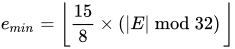
and converting the other direction:






Alternative appearance
Occasionally the developer console will change appearance, usually in relation to an event.
- In build 666, the background colour changed from purple to red, a joke referring to 666 being 'the Number of the Beast' or the devil's number.
- During the Christmas periods since 2011 the developer console has featured snowflakes on the interface. The snow continues to pile up on the background until the interface is completely filled, taking roughly 45 minutes. Closing the interface or resizing the client window reset the snow status on the Java client. This is active again in 2017, but this time with updated physics and only visible on the NXT client.


Trivia
- Pressing the "Page Up" or "Page Down" keys on your keyboard can list the previously used commands in the Developer console.
- When using the NXT client up-to the last 100 commands used will be inside this history initially.
- Text that has been copied from another source can be pasted into the console using Control-C (copy) and Control-V (paste). Text in the console can be copied using Control-A (select all) and then Control-C when the console is open.
- This is the first time ever that Jagex has enabled access to the very tools they use to develop the game. The developer's console available to the players is a restricted version, so players cannot affect the game in any way with it.
- When the developer's console is open, clicking somewhere will have the normal effect. The keyboard commands, such as the F1-F5 hotkeys or the arrow keys that move the camera position, won't work until the player closes the developer's console again.
- When one enters a command, the time of entering it is displayed in UTC.
- The 'cls' command will clear the console, but will not delete the previously entered commands. When one has cleared the console, and then presses Control-A they will still select all hidden previous commands (and any commands not hidden). This can then be copied and pasted somewhere to see the cleared commands.
- For a period of time, the commands cam_shake_test and cam_shake_reset could be executed by players. These were removed in a hidden update.
- 'toggle_mobile' is a command used by Jagex Moderators to switch the game interface into the mobile UI.


