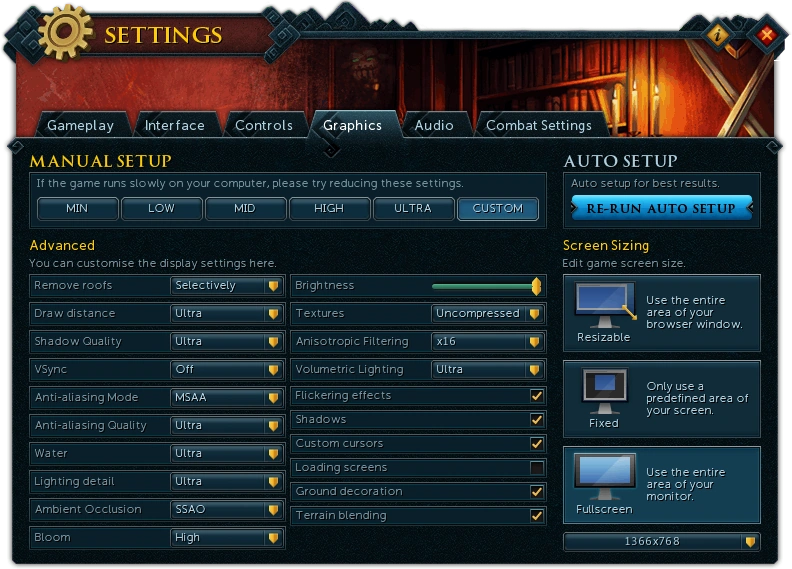
The settings interface for Graphics
Graphics settings are a set of options that allow customisation of the display of RuneScape.
NXT client
Manual Setup
There are preset options called min, low, mid, high and ultra with increasing graphical fidelity for each of the changeable graphics settings. There is also the option for auto setup that tries to select optimal settings for your hardware. The following advanced settings can be manually customised and doing so changes the preset to "custom".
Preset Table
| Setting | Preset | ||||
|---|---|---|---|---|---|
| Min | Low | Mid | High | Ultra | |
| Brightness | Does not change | ||||
| Remove roofs | Does not change | ||||
| Draw distance | Low | Medium | High | Ultra | |
| Shadow Quality | N/A | Low | Medium | High | Ultra |
| VSync | Does not change | ||||
| Anti-aliasing Mode | Off | FXAA | MSAA | ||
| Anti-aliasing Quality | N/A | Low | Medium | High | |
| Water | Low | Medium | High | Ultra | |
| Lighting detail | Low | Medium | High | Ultra | |
| Ambient Occlusion | Off | HBAO | |||
| Bloom | Off | Low | Medium | High | |
| Textures | Off | Compressed | |||
| Anisotropic Filtering | Off | x2 | x4 | x8 | |
| Volumetric Lighting | N/A | Off | High | ||
| Foreground FPS | Does not change | ||||
| Background FPS | Does not change | ||||
| Flickering effects | Does not change | ||||
| Shadows | Off | On | |||
| Custom cursors | Does not change | ||||
| Loading screens | Does not change | ||||
| Ground decoration | Off | On | |||
| Terrain blending | On | ||||
Brightness
Brightness controls the level of overall lighting and shade. It is changed with a slider.

Remove roofs
This setting controls when roofs are removed.
- Never - Never removes roofs.
- Always - Always removes roofs regardless of location or camera.
- Selectively - Only removes roofs that lie between the camera and the player.
- All - Removes all roofs when any roof lies between the camera and the player.


Draw distance
Draw distance determines the maximum distance objects will render from the player.
- Low
- Medium
- High
- Ultra


VSync
VSync controls the frame rate by synchronising it with your monitor's refresh rate.
- Adaptive - Only enables VSync when the frame rate is greater than or equal to the monitor's refresh rate.
- Off
- On - Always enables VSync, helps eliminate screen tearing.
- Half - Synchronises frame rate to half the monitor's refresh rate.
- Quarter - Synchronises frame rate to quarter the monitor's refresh rate.

Shadow Quality
Shadow quality controls the realism and render distance of object and scenery shadows. Changing this requires shadows to be on.
- Low
- Medium
- High
- Ultra


Anti-aliasing Mode
Anti-aliasing is used to remove aliasing (pixelated edges) when rendering objects.
- Off
- FXAA - Fast approximate anti-aliasing, lower quality but better performance.
- MSAA - Multisample anti-aliasing, better quality but lower performance.
- FXAA+MSAA - Combines both techniques, slightly blurrier.


Anti-aliasing Quality
Anti-aliasing quality determines the level of performance for anti-aliasing. Changing this requires Anti-Aliasing Mode to be on something else than "off".
- Low
- Medium
- High
- Ultra
Water
The water setting controls how realistic water looks including refraction and reflection.
- Low
- Medium
- High
- Ultra


Lighting detail
Lighting detail controls ambient lighting. There is no option to turn lighting "off".
- Low
- Medium
- High
- Ultra


Ambient Occlusion
Turning on ambient occlusion is only available on certain graphics cards. It controls shading of smaller and more intricate models with a greater specificity in detail.
- Off
- SSAO - Screen space ambient occlusion, less accurate but better performance.
- HBAO - Horizon based ambient occlusion, more accurate but lower performance.


Bloom
Bloom is a lighting graphics setting that controls additional brightness and impact of glowing effects.
- Low
- Medium
- High


Textures
Controls the quality of textures.
- Off
- Compressed - Forces terrain blending on.
- Uncompressed - Forces terrain blending on.


Anisotropic Filtering
Improves the appearance of textures, particularly terrain, when viewed from extreme angles and distances.
- Off
- x2
- x4
- x8
- x16


Volumetric Lighting
Adds additional lighting effects, particularly crepuscular rays. Changing this requires Shadows to be on.
- Off
- Low
- Medium
- High
- Ultra


Foreground and Background FPS
Sets the maximum frames per second that can be rendered when the game is the focused or unfocused window, respectively. These options can be set at intervals of 5, between 5 and 300 inclusive.
Flickering effects
Flickering effects are fullscreen flashes that provide dramatic ambience to an area. An example of such an area is the Killerwatt plane. This option can be switched either off or on.
It is recommended that players who are prone to epileptic seizures play with flickering effects turned off.
Shadows
The shadows setting controls whether or not shadows appear. This setting controls NPC, player and scenery shadows. This option can be switched either off or on.
Custom cursors
Custom cursors are mouseover cursors that are specific to certain actions. This option can be switched either off or on.
Loading screens
This setting controls whether or not loading screens are used. This option can be switched either off or on.

Ground decoration
This setting controls whether or not ground decoration such as grass and rocks are shown. This option can be switched either off or on.


Terrain blending
Terrain blending determines whether or not textures on tiles can blend with other adjacent tiles for a more fluid appearance. Turning this option off forcibly disables textures.


Screen Sizing
Either resizable, fixed or fullscreen game windows can be selected.
Resolution
Controls the display resolution when in fullscreen. Options are dependent on the display resolution of your monitor.
Java client
Manual Setup
There are preset options called min, low, mid and high with increasing graphical fidelity for each of the changeable graphics settings. There is also the option for auto setup that tries to select optimal settings for your hardware. The following advanced settings can be manually customised and doing so changes the preset to "custom".
Preset Table
| Setting | Preset | |||
|---|---|---|---|---|
| Min | Low | Mid | High | |
| Display Mode | Does not change | |||
| CPU usage | Maximum | |||
| Remove roofs | Always | Selectively | ||
| Idle animations | Few | Many | ||
| Scenery shadows | N/A | Static | Dynamic | |
| Lighting detail | Low | High | ||
| Water detail | N/A | Low | High | |
| Anti-aliasing | None | |||
| Particles | Low | Medium | High | |
| Max screen size | Does not change | |||
| Brightness | Does not change | |||
| Ground decoration | Off | On | ||
| Flickering effects | Off | On | ||
| Character shadows | Off | On | ||
| Fog | Off | On | ||
| Custom cursors | Does not change | |||
| Ground blending | Off | On | ||
| Textures | Off | On | ||
| Skyboxes | Off | On | ||
| Bloom | Off | |||
Display mode
Display mode chooses which API the client will use to render graphics:
- Direct-X
- OpenGL
CPU usage
CPU usage controls how much of your computer's resources the game can use. Despite the name, it appears that CPU usage refers to resources from the CPU and the graphics card.
- Very low
- Low
- Normal
- High
- Maximum
Remove roofs
This setting controls when roofs are removed.
- Always - Always removes roofs regardless of location or camera.
- Selectively - Only removes roofs that lie between the camera and the player.
- All - Removes all roofs when any roof lies between the camera and the player.


Idle animations
Idle animations are animations that play when characters are not performing an action. This setting controls how many players can have idle animations playing.
- Few
- Many
- All
Scenery shadows
Scenery shadows are shadows from non-character models. Scenery shadows require textures to be on.
- None - No piece of scenery will produce a shadow
- Static - Scenery will have shadows, but these shadows will be stationary
- Dynamic - Scenery will have shadows, and these shadows will change with the object


Lighting detail
Lighting detail controls ambient lighting. There is no option to turn lighting "off".
- Low
- High


Water detail
Water detail controls how realistic water appears. High water detail requires fog to be on. Proper display of high water detail also requires lighting detail to be high.
- Low
- High


Anti-aliasing
Anti-aliasing is used to remove aliasing (pixelated edges) when rendering objects. The Java client uses Multisample anti-aliasing.
- None
- 2x
- 4x


Particles
Particles are extra fuzzy or small effects that are created without polygons or textures. This setting determines how many objects are allowed to generate particles.


Max screen size
Max screen size determines what resolution the game will be rendered for when using fixed mode. It has no effect on the other modes.
- Any - Changes the screen sizing mode to resizable
- 800x600 - Changes the screen sizing mode to fixed
- 1024x768 - Changes the screen sizing mode to fixed
Brightness
Brightness controls the level of overall lighting and shade. It is changed with a slider.

Ground decoration
This setting controls whether or not ground decoration such as grass and rocks are shown. This option can be switched either off or on.


Flickering effects
Flickering effects are fullscreen flashes that provide dramatic ambience to an area. An example of such an area is the Killerwatt plane. This option can be switched either off or on.
It is recommended that players who are prone to epileptic seizures play with flickering effects turned off.
Character shadows
Character shadows are shadows that appear under NPC and player models. This option can be switched either off or on.

Fog
A fog appears at the edge of the render distance to obscure unloaded objects.


Custom cursors
Custom cursors are mouseover cursors that are specific to certain actions. This option can be switched either off or on.
Ground blending
Ground blending determines whether or not textures on tiles can blend with other adjacent tiles for a more fluid appearance. This option can be switched either off or on. Turning this option off forcibly disables textures.

Textures
Textures are extra skins that are placed over models to give an appearance that polygons or other graphics cannot. Textures requires ground blending to be on.
Skyboxes
Skyboxes are backgrounds added to the main backdrop, behind the overworld. Skyboxes paste an image over the blank canvas background that creates a fuller ambience for the setting. While not all areas have specific images to add as a skybox, this setting also controls blending and sky colour, to an extent. This option can be switched either off or on.


_interface.png)
Bloom
Bloom is a lighting graphics setting that controls additional brightness and impact of glowing effects. The effect was mentioned in the developer blog for RuneTek 5 as one of the additional graphical effects that will be possible in HD mode with the new engine. Bloom requires lighting detail to be high. This option can be switched either off or on.


Mechanics | |
|---|---|
| Engine | |
| Products |
|
| Performance |
|
| Graphics |
|
| Servers |
|