
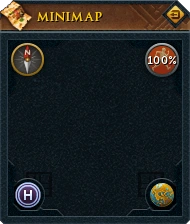
Current minimap
The Minimap (also called mini-map in RuneScape documentation) is the area of the game interface in the upper-right of the screen. It shows a bird's eye schematic of the player's surrounding area, with the player at the centre. It does not show the map in certain areas, such as in the Barrows and Puro-Puro.
White lines represent walls, fences, etc., while a red marker indicates a door or other penetrable features. Coloured dots act as markers to identify nearby items, players, monsters and NPCs (see below for more details). Certain buildings, including most shops, and features such as water sources and quest start points are marked by unique icons.
Players can navigate by clicking directly on the minimap itself. A red flag will appear to show that the server is moving the player to the area clicked on; however, if one tries to enter a location that is inaccessible (due to a door being closed, or some other obstruction) then either nothing will happen, or the game will move your red flag to the nearest point that you can travel to.
Markers
The following shapes and colour schemes denote different things.
People
- The square white dot in the middle of the minimap marks your own position.
- A white dot represents another player, and is overridden by the options below, if they apply.
- A purple dot indicates a fellow friend chat member.
- A orange dot indicates a fellow clan chat member.
- A blue dot indicates a person wearing the same Team cape.
- A yellow dot indicates an NPC.
- A green dot indicates a friend.
There are no markers for followers.
Arrows
- A blue arrow shows the direction of your currently placed Waypoint.
- A red arrow shows the direction of your target in Castle Wars, etc.
- A yellow arrow shows the exact location of your target in Learning the Ropes, Castle Wars, etc.
Other
- A red dot indicates an item or stack of items on the ground.
- A white line marks a wall, usually with no effect.
- A red line marks a door, gate or stile, which can be opened, closed or inaccessible.
- A red flag indicates the current destination of your character.
Scale
The scale of the Minimap is equal to that of the official Java-based World Map at 100% zoom, or exactly 16 pixel-lengths2 = 1 square. Alternatively, the conversion 4 pixel-lengths = 1 square-length may be used. When perfectly aligned along the horizontal and vertical axes, the Minimap displays a circular area with a radius of exactly 19 square-lengths.
User interface icons
There are five icons, located in the four corners of the minimap.
 The logout button is located in the top right, above the run energy icon. When the interface is locked, the logout option will be merged with the run options.
 The Compass is located in the top left corner. Instead of showing the direction one's character is facing, as some may expect, the compass shows the direction which the camera and minimap face. In order to throw off some macro programs, the compass and minimap are not aligned perfectly with each other and the camera.
The "N" arrow represents north, and the other (unlabelled) arrows represent the other directions, as with a standard compass. The other directions used to be labelled, but that was taken off because in many languages the words for west, south and east don't begin with "W", "S" and "E" while "N" for north works for most languages. Clicking the compass faces the camera directly north and slightly elevated.
 The Energy icon shows the player's remaining energy, or how long one can run before walking. A player can also click on it to toggle running on or off. The background will also drain as energy is reduced. The option to rest is accessed by right-clicking the Energy icon, enabling you to charge both your life points and run energy at twice the normal rate. When the interface is locked, the logout option is merged with the run icon.
 The World Map icon, when clicked, will bring up the World map. When clicked in an un-mapped dungeon or during a Random event, the view will default to the Lumbridge Swamp. In dungeoneering or a clan citadel, it will open an area-specific map instead of the world map. Right-clicking on the icon shows the option "Open World Select" that will open the world hop interface.
 The Home Teleport icon will open the lodestone network interface. In dungeoneering, it will cast the dungeoneering home teleport.
Historical icons
PvP
Note that these icons used to appeared while players were in PvP worlds. PvP worlds no longer exist due to an update.


Level range for a player with Combat level of 95+6
The Safe zone icon appeared when players entered "safe zones" while on PvP worlds. This indicated that the player could not be attacked by other players. The Level range (located just below the "Safe zone icon" showed a particular level range of Combat level, where any player within that range could be attacked by the player.

The Hot zone icon appeared when players entered "hot zones" while on PvP worlds. See Hot zones for more information.

The Countdown timer icon appeared when players entered "safe zones" while in combat. When the 10-second timer is still active, the player could still be attacked and killed even while in a "safe zone".
Runescape 2
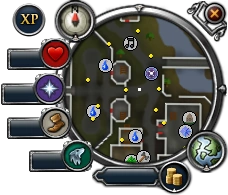
RuneScape HD minimap
The following were part of the minimap, but were moved with the release of Runescape 3:
 Money pouch
 XP tracker
 ,
,  , and
, and  health, prayer, and summoning points were on the minimap instead of the action bar.


Glitches
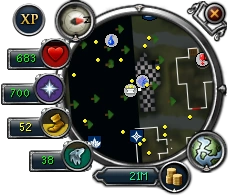
A glitch where part of the minimap failed to load.
RuneScape's minimap is often the victim of persistent glitches. The first reports of players experiencing glitches with the graphical interface of the minimap came roughly around 21 November 2009.
The most frequently-occurring glitches include:
- Misplacement of map chunks, causing a certain side of the map to become displaced from the real position, with black space separating areas. Sections appearing to be flatly "blacked out" is simply due to a map piece out of view.
- Background fully turning black, with the dots and icons still visible. Can happen when one's internet connection is lost, then reestablished.
- Icons having a black rectangular background. Believed to be certain bits of game code rejecting the icons' transparency.
- Map's edges leaking out of its border.
All of the above are almost always loading errors, not nonexistent files on the server-side. The first two glitches can usually be temporarily fixed by "reloading" the minimap, via methods such as teleportation, logging out and back in, entering an entrance to another map and returning, open the world map and close it immediately, or simply moving a distance and returning. Changing RuneScape's graphics display mode might help as well.
Less common glitches:
- Minimap not appearing at all.
- While having a Summoning pet out, right-clicking the summoning icon will sometimes show an "Attack" or "Cast Spell" option. This glitch has not yet been fixed.
- A white background.
- Landscape being misplaced and shrunk in areas other than the RuneScape surface.
- The graphics being of lower quality; reseting the graphics settings does not affect it though.
The collective glitches have no effect whatsoever on the actual location, and typically do not pose harm to players, unless a player is disoriented by the minimap issues in a dangerous/competitive area that may or may not rely on the minimap. Still many players have become accustomed to the graphical glitches and so tend to ignore the problems.
Gallery


Trivia
- The minimap has been graphically changed, most noticeably the Logout icon in the top right corner and a globe-based icon in the bottom left, featuring the World map.
- The minimap shown in Jagex's test/private servers are comparably different to the minimap players see in the RuneScape java client.
- Every minute or so the map's orientation (along with the actual world) will rotate slightly. This is most likely to prevent certain types of bots, such as autoclickers, from working for extended periods of time.
- Jagex Moderators are able to teleport anywhere on the minimap by holding control and clicking.


